 Cookie Editor
How to Install Cookie Editor in Chrome, Step by Step
Install the original Cookie-Editor in Chrome from the official Web Store listing, pin the icon, and verify it works with a harmless theme preference.
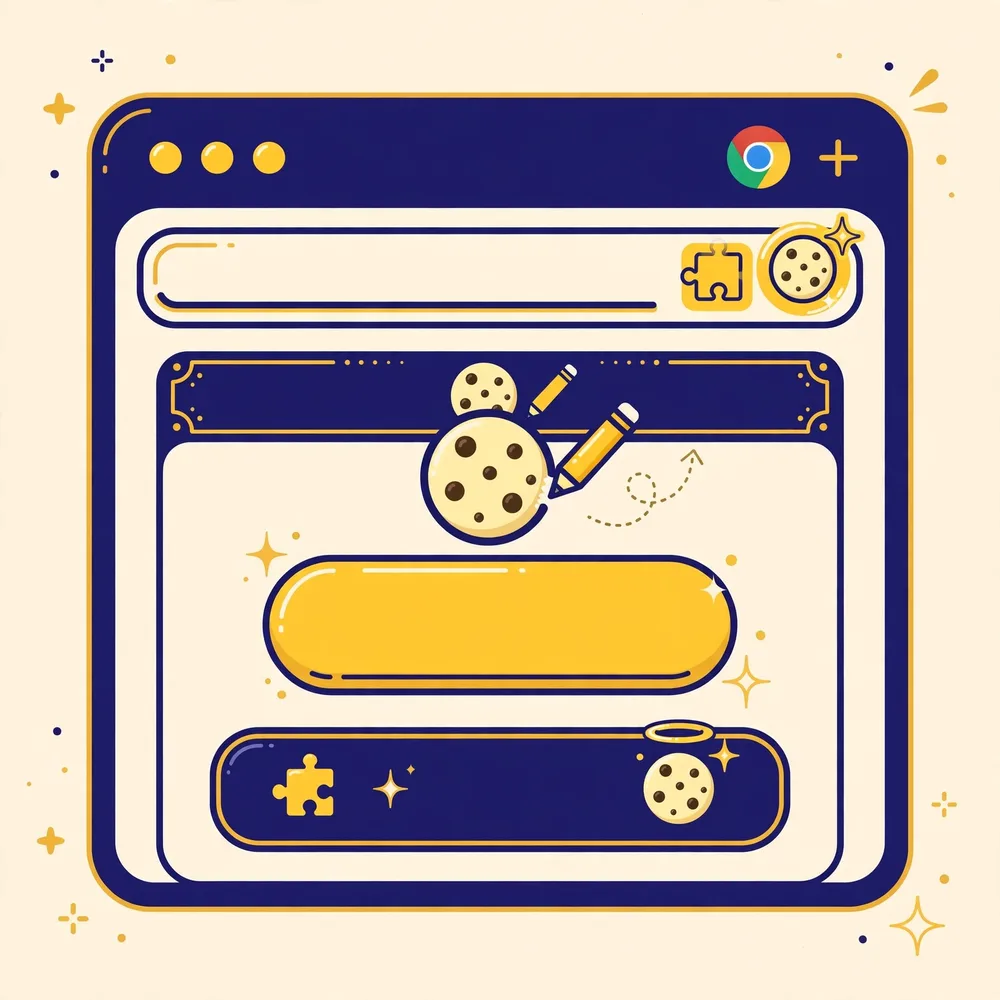
Cookie Editor installs in Chrome in about a minute, and the only safe place to get it is the Chrome Web Store. The original extension is called Cookie-Editor, it is published by Christophe Gagnier (Moustachauve), and its source code is open on GitHub. Several unrelated extensions use a similar name, so check the publisher and the listing before you click Add, the steps below link to the correct listing, which is the same one used in the download section of this site's homepage.
Before you start
You need a desktop or laptop running Google Chrome (Windows, macOS, Linux or ChromeOS all work the same way) and a Google account is not required just to add a free extension. Extensions cannot be installed in Chrome for Android or in the iOS Chrome app, so if you are on a phone, use the Android or iPhone guides in this category instead. Also decide which Chrome profile you are installing into: work and personal profiles have separate extensions and separate cookies.
Install Cookie Editor in Chrome
- Open the official listing
Go to the download section on the homepage and choose Google Chrome, or search the Chrome Web Store for “Cookie-Editor” and confirm the publisher is Christophe Gagnier before opening it.
- Click Add to Chrome
On the listing page, click the blue Add to Chrome button. The store shows the extension's icon, rating and the permissions it requests.
- Review the permission prompt
Chrome shows a dialog explaining that Cookie-Editor can read and change cookies on sites you visit. That access is what makes editing possible. If the prompt names a different extension or unexpected data types, cancel and re-check the listing.
- Confirm with Add extension
Click Add extension. Chrome downloads and installs Cookie-Editor in a few seconds and confirms with a small notification.
- Pin the icon to the toolbar
Click the puzzle-piece Extensions icon at the right of the address bar, find Cookie-Editor in the list and click the pin icon next to it. The cookie icon now stays visible in the toolbar.
Run your first safe test
Do not start by editing a sign-in cookie. Open a site you control, or any page that saves a display preference, and change its theme or language so the page stores a preference cookie. Then click the Cookie Editor icon in the toolbar. You should see a list of the cookies for that site, with names you can expand to reveal value, domain, path and expiry. If you can see a familiar preference name such as theme or lang, the installation works.
If the icon does not appear
The most common causes are a hidden icon (open the puzzle-piece menu and pin it), installing into a different Chrome profile than the one you are testing in, or the extension being disabled. Open chrome://extensions, find Cookie-Editor and check its toggle is on. The full checklist is in our guide to Cookie Editor not working.
What you should see when it works
A successful install has three visible signs. The cookie icon sits in the toolbar where you pinned it, not only inside the puzzle-piece menu. Clicking it opens a panel headed with the current site's name, and the panel lists entries when the page has saved cookies, each with a name you can expand. And on a page with a visible preference, a theme or language you chose yourself, that preference appears in the list with the value the page set. If all three are true, the installation is complete and healthy, and any later problem is about a specific site or cookie rather than the install itself.
Installing for more than one Chrome profile
Chrome keeps extensions per profile, so a work profile and a personal profile are separate worlds. If you test websites in both, repeat this same install in each profile you use; the store listing, the pin and the first check all behave identically. A quick way to confirm which profile you are in is the avatar at the top right of Chrome's toolbar. Installing twice is not a mistake, it is how Chrome is designed, and the two copies never share cookies or settings.
| Check | What confirms it |
|---|---|
| Correct listing | Publisher shown as Christophe Gagnier on the store page |
| Icon pinned | Cookie icon visible in the toolbar without opening the puzzle menu |
| Panel opens | Clicking the icon shows the current site's cookie list |
| First test passed | A theme or language preference appears with the expected value |
After installing, make the panel yours
Two small habits make the Chrome panel faster to live with. First, use the panel's search box from the start: on any real site the list is long, and typing the first letters of a preference name beats scrolling every time. Second, keep the puzzle-piece menu tidy by pinning only the extensions you touch daily; Cookie Editor earns its pin because cookie work is usually a quick check between other tasks, and a buried icon quietly discourages the check. Neither habit changes what the tool does; both change how often you actually use it, which is where its value is.
Frequently Asked Questions
Is Cookie Editor for Chrome free?
Yes. The original Cookie-Editor is free and open source. If a listing asks for payment to install it, you are looking at a different product, leave that page and use the official listing linked from this site.
Do I need to restart Chrome after installing?
No. The extension works immediately. If the icon is missing, pin it from the Extensions menu rather than reinstalling.
Can I install Cookie Editor in other Chromium browsers?
Brave, Edge and Opera can install extensions too, but install each browser's own build where one exists. Edge and Opera have their own listings, see the Edge guide in this category.
Related guides
How to Install Cookie Editor in Firefox
Install Cookie-Editor in Firefox from Mozilla Add-ons, pin the icon, and check it against a simple preference cookie.
Cookie Editor Not Working? Icon Missing, Empty List and Other Fixes
Icon missing, empty list, wrong profile, mobile not opening, the five Cookie Editor problems people actually hit, with the fix for each.

How to View Cookies for a Website With Cookie Editor
Open the right tab, click the icon, and read the cookie list properly, including how to search it and why entries sometimes look duplicated.